Messaging Service Notifications
The Messaging Service Notifications - for Slack & MS Teams - deliver deliver information based on the Daily Summary Mail.
In addition, notifications can be sent for changes in alert level.
Message content
Messages are sent on a per-vessel basis. There are two message types:
- Interval-based: Messages for target vessels are sent at the specified time interval
- Condition-based: Current alert levels are compared to the previous alert level, and if a change has occurred, a message is sent
| Message Content | |
|---|---|
| Title | 【Client】【Group】- WNIAlert (Message type) |
| Timestamp | Reported Date(UTC) view map (A link to the map) |
| Vessel Info | IMO / Vessel name (A link to the map) Position: latest AIS position |
| Route Info | PassagePlan Sent: PassagePlan delivery timestamp OSR Update: OSR route update timestamp |
| Alert Info | Offtrack: Offtrack distance (Alert level) Rolling: Rolling Risk Forecasted encounter time (Alert level) Int. time: Risk Area Forecasted encounter time (in hours from now) UKC Margin: Percentage of water depth to draft (Alert level) * Condition-based messages display the change from the previous level with a symbol at the beginning of the alert item |
Message type comparison
| Interval-based | Condition-based |
|---|---|
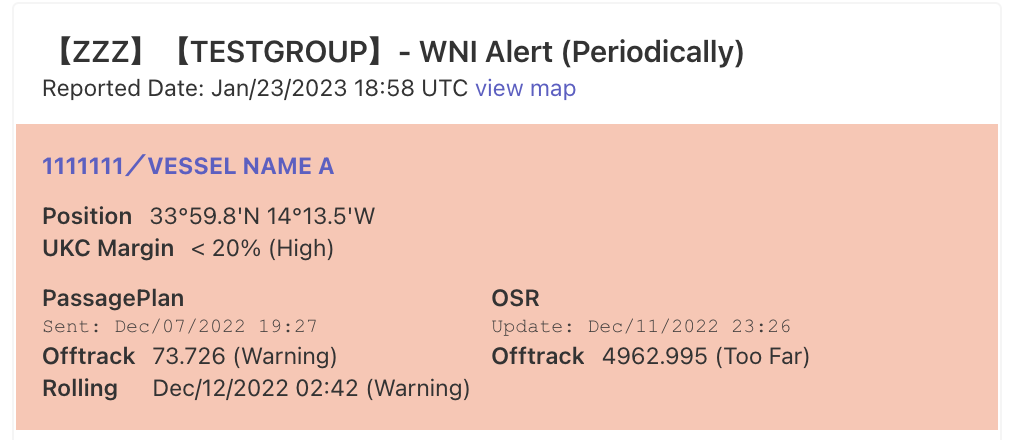 |
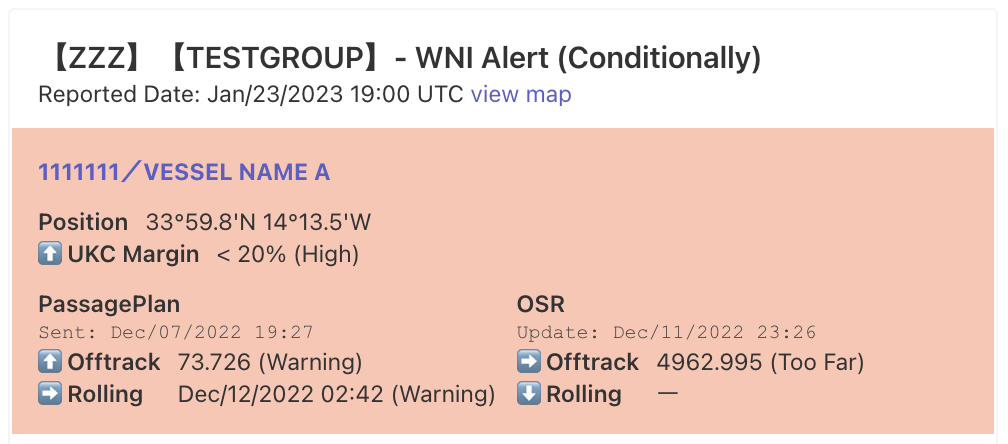 |
Alert level comparison
| Warning | Caution | None |
|---|---|---|
 |
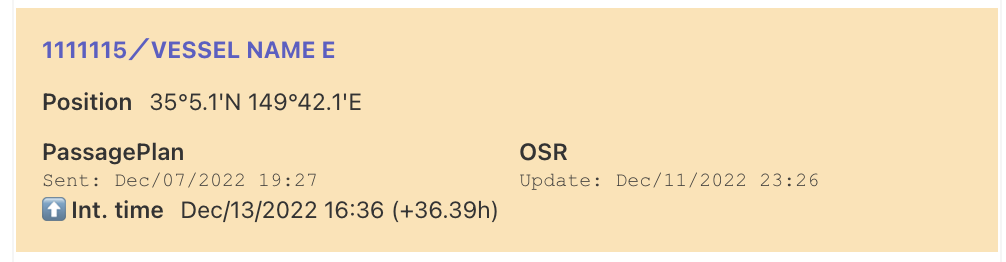 |
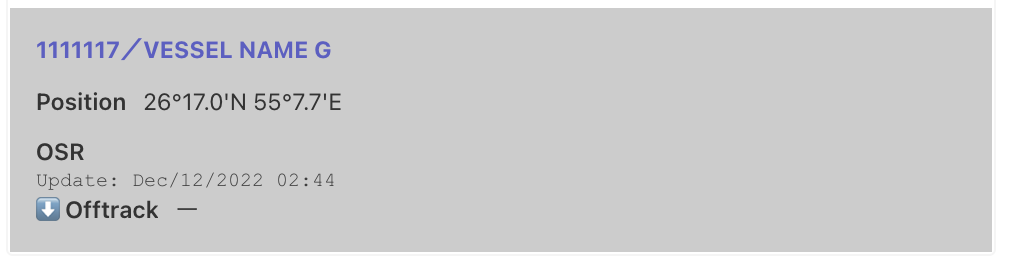 |
Message delivery timing
There are two message delivery types: interval-based, and condition-based
The following table illustrates the two different methods
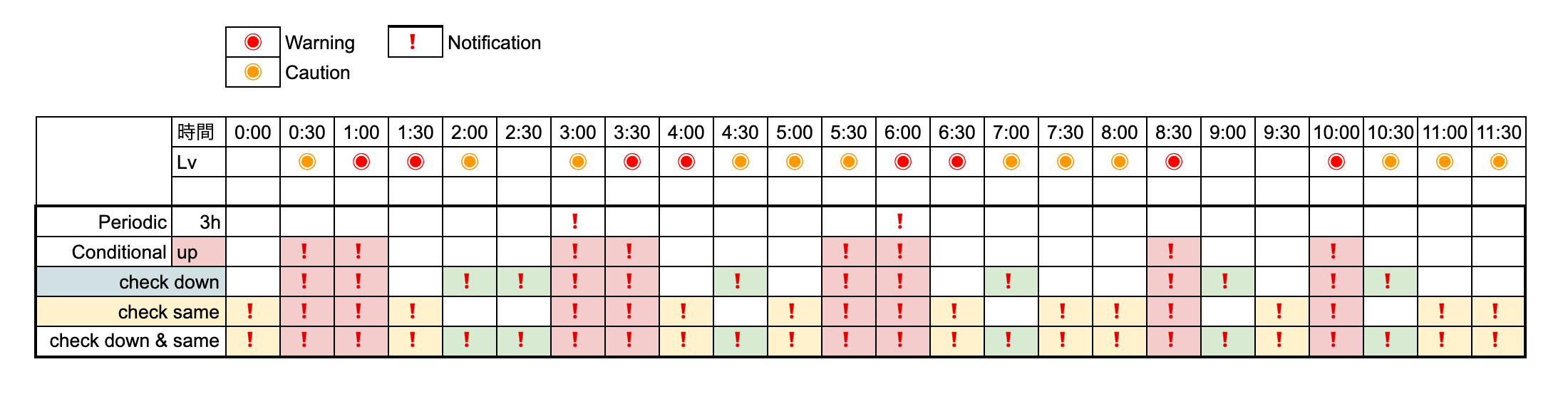
Delivery settings
Please prepare the following items in order to register for messaging services:
- A messaging service account (Slack or Teams)
- A delivery address name (Roman characters only - A to z)
- A Webhook URL (Obtained from the messaging service. Differs by service. See below)
- Desired message type (interval-based or condition-based)
Generate a webhook for Microsoft Teams
The old Connectors method has been retired
Microsoft has retired the legacy Connectors → Incoming Webhook flow. New Teams webhooks are now created with the Workflows app (powered by Power Automate). The steps below follow this current method. Note that webhook URLs issued this way use the https://*.logic.azure.com format instead of the old webhook.office.com format.
- If you wish to create a new channel, please go ahead and do so first.
-
Generate a Teams Webhook with the Workflows app(Current methodMS Teams Site)
-
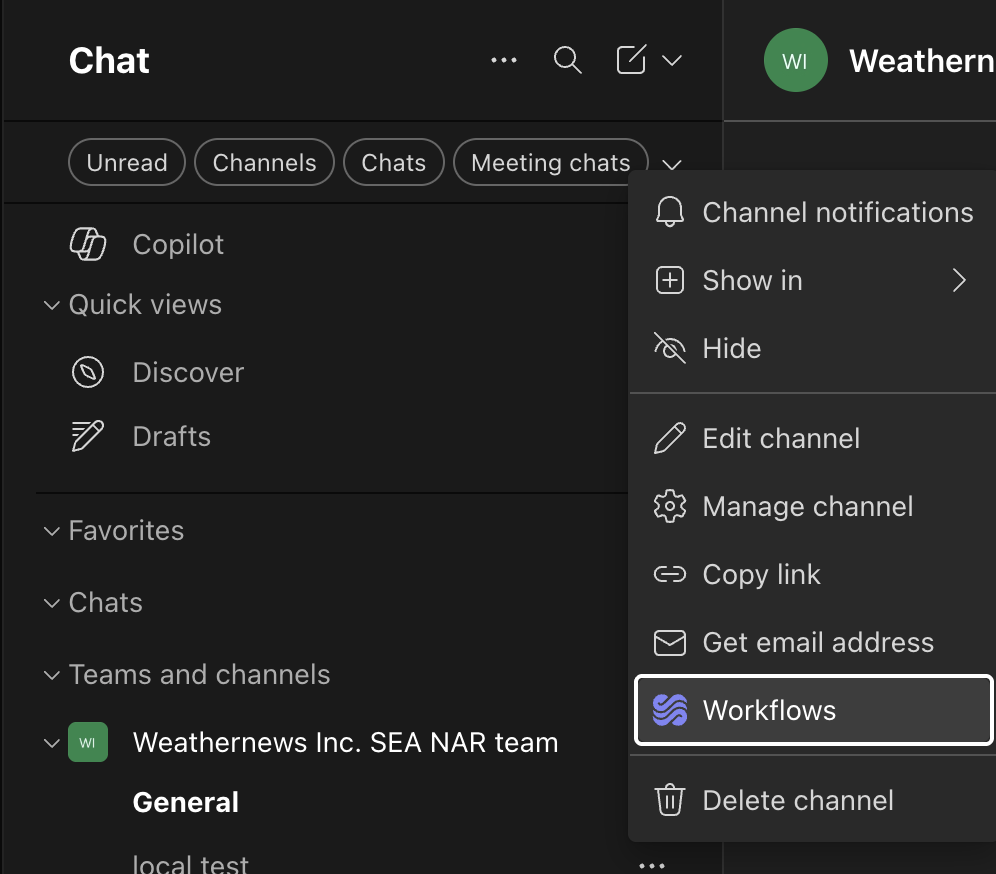
Open the Teams app, select More options (•••) next to the channel you want to notify, and choose Workflows.
-
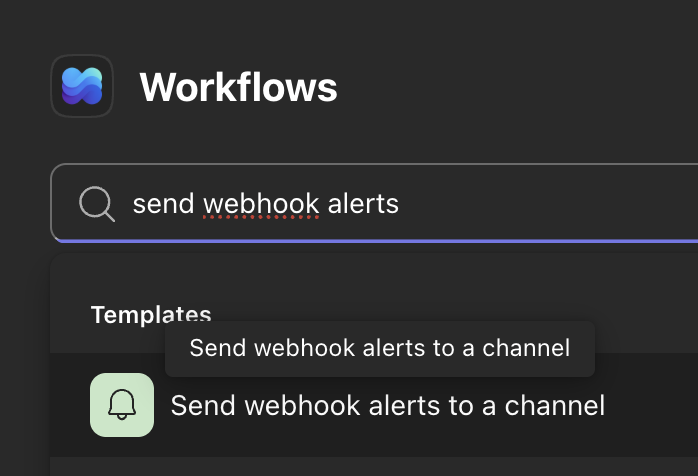
Search for "send webhook alerts" and select the "Send webhook alerts to a channel" template. If prompted, sign in with the account that should own the workflow and allow the connection.
-
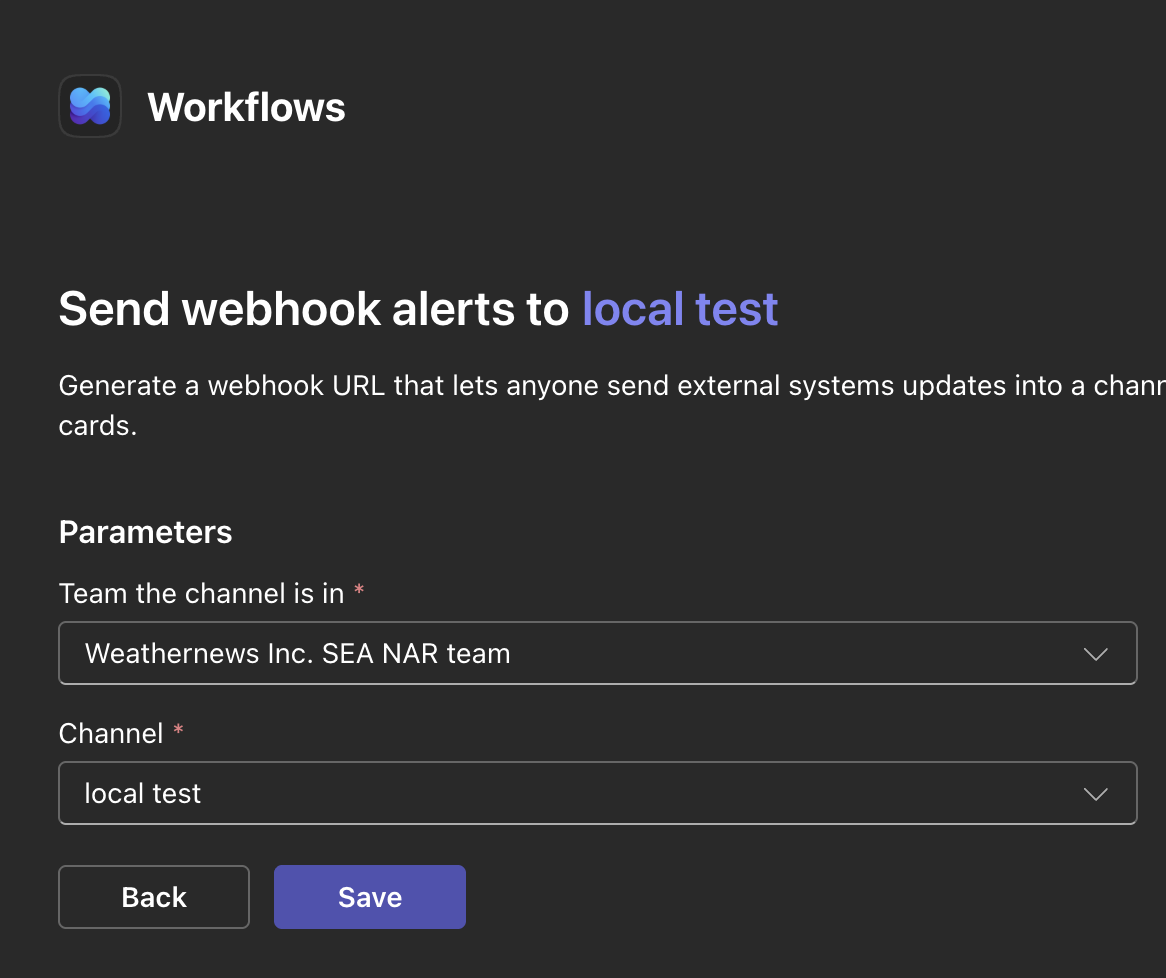
Confirm the Team and Channel the messages will be posted to, then press Save.
-
Once the workflow is created (shown as Active), press Copy webhook link to copy the webhook URL.
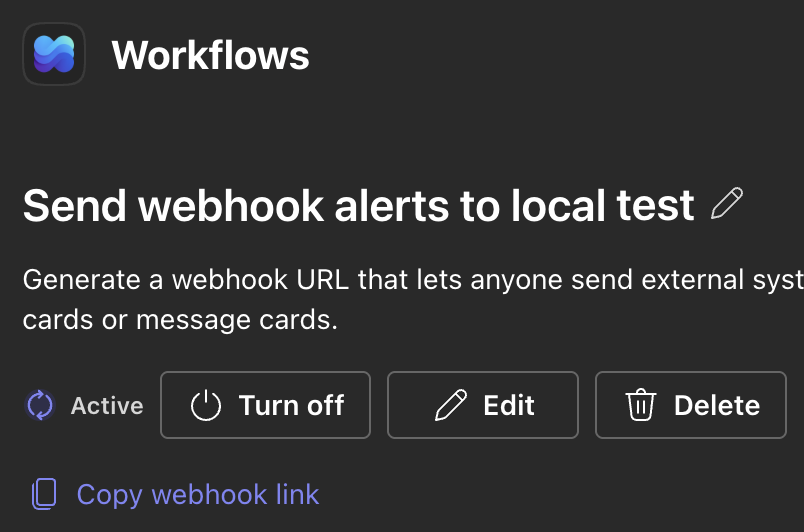
Teams webhook test
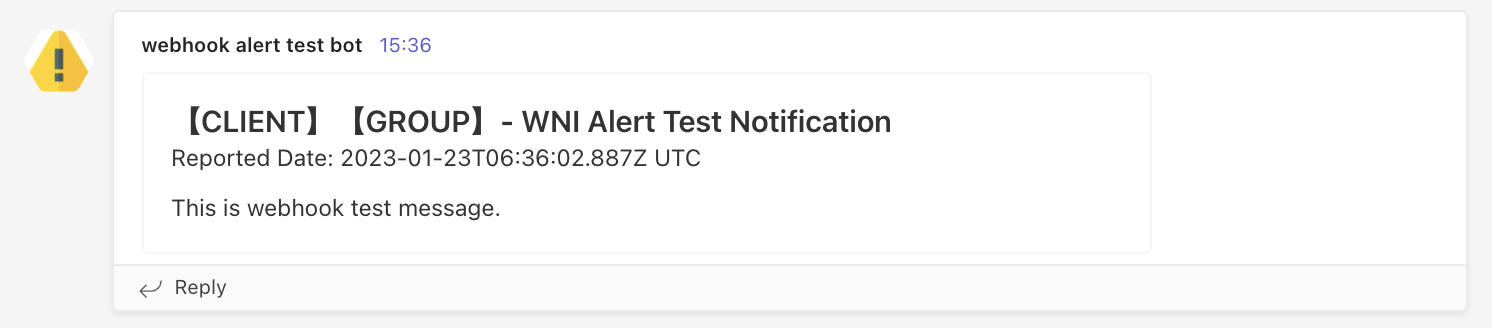
Copy the webhook here and hit 「Test」
If you see the following message, your webhook was set up successfully!
-
Generate a webhook for Slack
- If you wish to create a new channel, please do so first.
-
Generate a Slack webhook(Current method: Slack site)
- Create a new Slack app in the workspace where you want to post messages. Creating an app
- From the Features page, toggle Activate Incoming Webhooks on.
- Click Add New Webhook to Workspace.
- Pick a channel that the app will post to, then click Authorize.
-
Use your Incoming Webhook URL to post a message to Slack.
Slack webhook test
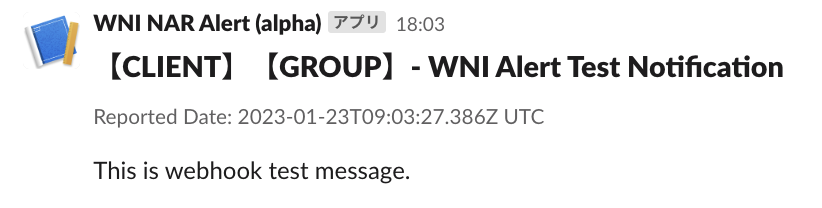
Copy the webhook here and hit 「Test」
If you see the following message, your webhook was set up successfully!
Register the webhook on the Group Settings site
- Access the Group Settings Site.
- Hit the edit button
 of the group you'd like to register it with.
 -
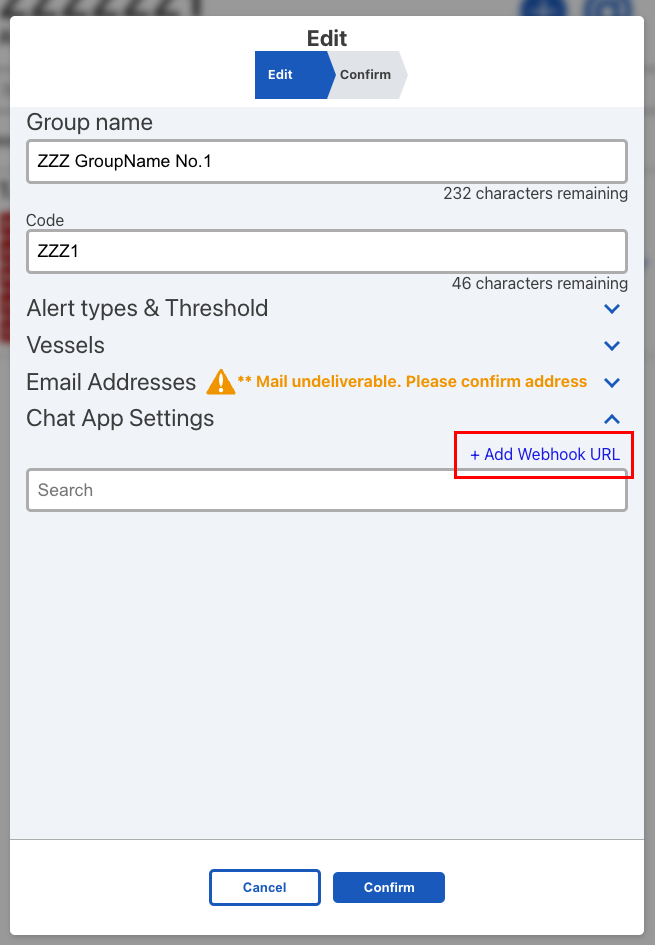
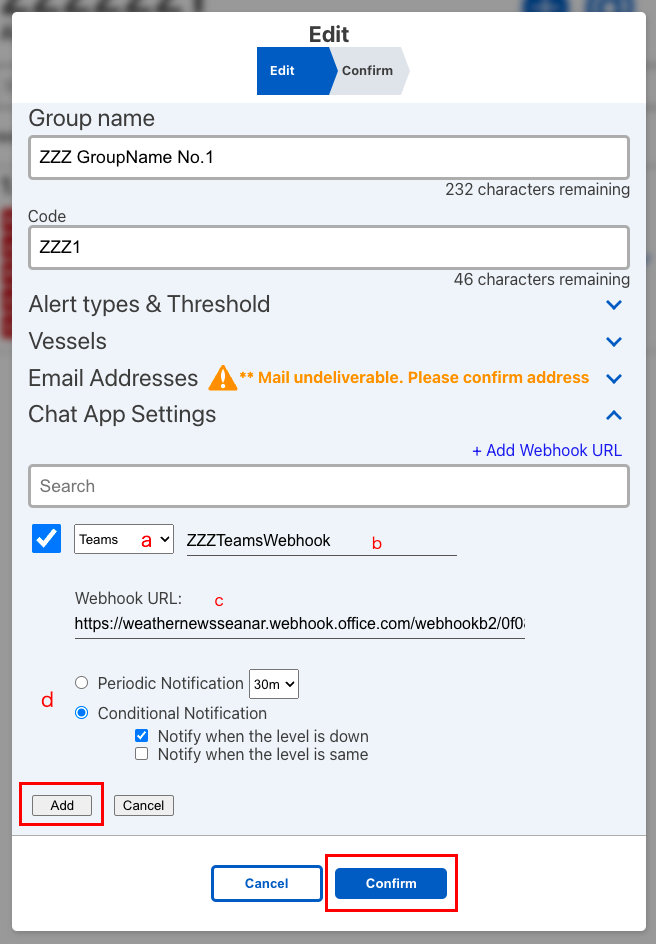
Open the ChapApp tab and hit「+Add Webhook URL」.
-
Fill in the necessary data, then hit 「Add」
- Messaging app
- Webhook name (To easily identify the webhook on the Group Settings site)
- Webhook URL (Copy and paste from the app)
- Delivery settings
-
Hit 「Confirm」to complete the registration.